Digital creators often work with several devices during a single project. A photographer may transfer pictures from a camera to a laptop, a video editor may work with large files stored on an external drive, and a social media creator may move content between a phone and a computer. When these devices need different connections, an organized workspace becomes essential.
The challenge is not simply having enough ports. Creators also need reliable data transfers, compatible accessories, suitable charging options, and a setup that can adapt when their projects change. Poor connectivity can waste valuable time, particularly when deadlines are approaching or files need to be transferred quickly.
Choosing the right usb c cable is a useful starting point because it can support charging, data transfer, and other functions depending on its specifications. However, not every USB-C cable supports the same speeds or features. Understanding these differences helps creators build a setup that works with their existing equipment instead of buying accessories that do not meet their needs.
Why Connectivity Matters in a Creative Workflow
Creative work often involves moving information between devices. A photographer might copy hundreds of high-resolution images, while a video creator could transfer several gigabytes of footage before editing begins. Designers may also connect external displays, storage drives, drawing tablets, and input devices to a single laptop.
When connections are unreliable, even simple tasks become frustrating. Files may take longer to transfer, peripherals may disconnect unexpectedly, and a laptop with limited ports may require constant cable switching.
A dependable setup reduces these interruptions. It allows creators to focus on editing, reviewing, and publishing content rather than repeatedly troubleshooting their equipment.
Before purchasing anything, identify the devices used in your daily workflow and the connections each one requires. This provides a clearer picture of which accessories will genuinely improve your workspace.
Understanding USB-C Cable Capabilities
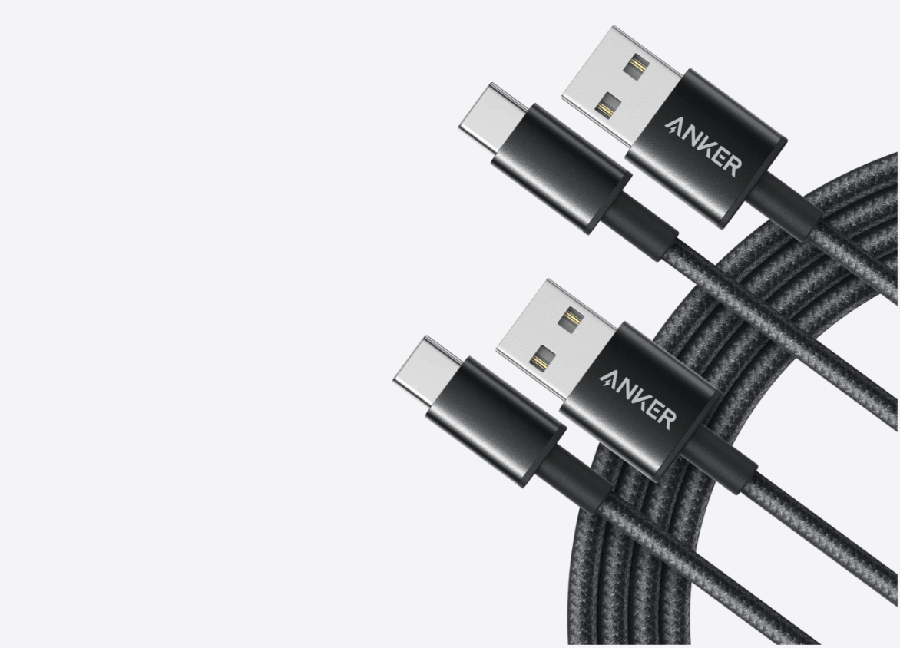
USB-C is a connector type, not a guarantee of a particular data speed or charging performance. Two cables can look almost identical while offering different capabilities.
Some cables are suitable for basic charging and lower-speed data transfers. Others support faster data standards, higher power levels, or compatible display functions. The devices connected at both ends must also support the features you want to use.
For example, a cable intended mainly for charging a smartphone may not be the best choice for transferring large video files from an external SSD. Similarly, a cable that supports charging does not necessarily support every display output available through a laptop’s USB-C port.
The USB Implementers Forum explains these differences in its official USB-C cable and connector guidance. Checking the specifications of the cable, host device, and connected accessory can prevent compatibility problems.
Match the Cable to the Task
Different creative tasks place different demands on a connection.
- Charging: Check the supported power rating and the requirements of the device.
- File transfers: Compare the cable’s supported data rate with the storage device and computer.
- External displays: Confirm that the cable and computer support the required video functionality.
- Everyday peripherals: A basic compatible cable may be sufficient for devices such as some keyboards and mice.
Cable length can also affect convenience. A short cable may work well on a compact desk, while a longer one can make it easier to position external storage or connect equipment across a workspace. Always choose a cable rated for the performance required by the setup.
Expanding Laptop Connectivity
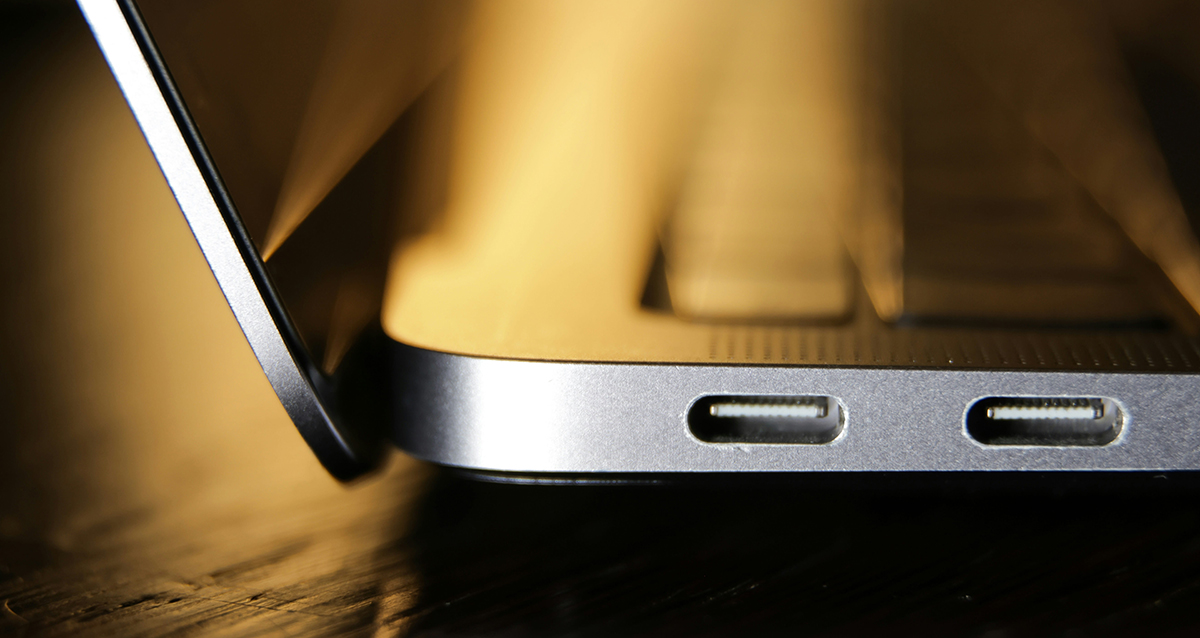
Many modern laptops are designed to be thin and portable, which can limit the number of built-in ports. This can become inconvenient when a creator needs to connect several accessories simultaneously.
A USB hub can expand the available connections through a compatible host port. Depending on its design, a hub may provide USB-A ports, additional USB-C connections, card readers, Ethernet, or display outputs.
For someone editing photos, a hub may make it easier to connect a memory-card reader, keyboard, mouse, and external drive. A video creator may need additional connectivity for audio equipment and storage devices.
However, a hub should be selected according to the actual workflow. A model with numerous ports may still be unsuitable if it does not support the required data speeds or display functions.
Hub or Docking Station?
A basic hub is often sufficient for everyday peripherals. A docking station may be more appropriate for a permanent workstation with multiple displays, laptop charging, wired networking, and several connected devices.
The distinction depends on the specifications rather than the product name alone. Some hubs support advanced features, while certain docks have limitations that may affect a particular laptop.
Before purchasing, confirm the following:
- The number and type of ports available.
- Supported data-transfer speeds.
- Compatibility with the computer’s operating system.
- Display resolution and refresh-rate support, if needed.
- Laptop power-delivery capability.
- Whether an external power adapter is required.
This checklist helps ensure that the accessory supports the intended setup instead of creating new limitations.
Improving File Transfers and Storage Management
External storage is an important part of many creative workflows. High-resolution photography, video footage, design files, and project backups can quickly occupy a laptop’s internal storage.
A compatible external SSD can provide additional space and make files easier to move between computers. However, transfer performance depends on several components, including the drive itself, the computer’s port, the cable, and any hub used in the connection.
If a fast drive transfers files more slowly than expected, check the specifications of each component. Connecting a high-performance drive through a slower port or cable can limit the results.
Creators should also maintain a consistent file-management routine. Organize projects into clearly named folders, separate original files from edited versions, and create backups before deleting files from memory cards.
Avoid disconnecting a storage device while files are being transferred. Use the operating system’s safe-ejection process when applicable, and wait for active operations to finish.
Connecting Cameras, Phones, and Other Accessories
Creative projects frequently move between cameras, smartphones, tablets, and computers. A suitable combination of cables, card readers, and hubs can simplify these connections.
For example, a photographer might transfer images from a camera’s memory card to a laptop, review selected files on a larger screen, and then send finished images to a phone for publishing. A video creator may transfer footage to external storage before editing it on a computer.
The exact process depends on the equipment. Some cameras support direct USB transfers, while others make memory-card readers more convenient. Phones may also require permission to access files or a particular transfer mode.
Check the manufacturer’s instructions for each device, especially when moving large files or connecting unfamiliar accessories. Compatibility should be confirmed before an important project rather than discovered in the middle of a deadline.
Power Delivery for Longer Creative Sessions
Creative applications can place heavy demands on laptops. Video editing, image processing, animation, and other intensive tasks may increase power consumption compared with ordinary browsing.
A USB-C connection may support laptop charging through a compatible charger, hub, or dock. However, the available power must meet the computer’s requirements. A hub that supplies insufficient power may charge the laptop slowly or fail to keep up during demanding work.
USB Power Delivery allows compatible devices and power sources to negotiate supported power levels. The USB-IF provides additional information in its USB Charger and Power Delivery documentation.
Check the laptop’s recommended power requirements and compare them with the accessory’s output specifications. Also consider the power consumed by connected peripherals when using a dock for charging.
Keeping the Workspace Organized
A creative workstation can become cluttered when several cables and accessories are connected at once. An organized layout makes equipment easier to access and reduces the risk of accidental disconnections.
Place the hub or dock where its ports remain accessible. Keep external drives on a stable surface, and use cable clips to prevent loose cables from falling behind the desk.
Separate frequently used connections from accessories that are only needed occasionally. For instance, a keyboard and mouse may remain connected permanently, while a camera cable can be stored until a new project begins.
Avoid bending cables sharply or placing heavy objects on connectors. Damaged cables can cause intermittent problems and should be replaced rather than repeatedly repositioned.
A consistent arrangement also makes it easier to pack equipment when working outside the home. Store essential cables and adapters together so that the required accessories are available when needed.
Troubleshooting Common Connection Problems
When a device fails to connect, start with simple checks instead of immediately replacing the hardware.
First, verify that the cable is fully connected and that the port supports the required function. If possible, test the device with another compatible cable or port.
If file transfers are slow, compare the supported data speeds of the computer, cable, hub, and storage device. For a display that is not working, check the computer’s video-output capabilities, the cable specifications, and the monitor’s selected input.
Power-related issues require separate attention. Confirm that the charger and hub can provide sufficient power for the connected devices. Some accessories need their own power supply, particularly when several peripherals are connected simultaneously.
Testing one component at a time makes troubleshooting easier and helps identify the actual cause of the problem.
Summary
An effective creative workstation depends on reliable connections, compatible accessories, and a consistent approach to managing files and equipment. The right USB-C cable supports the functions required by your devices, while a suitable hub or docking station can simplify a laptop’s connection to multiple peripherals.
Rather than choosing accessories based solely on appearance or port count, compare their specifications with your real workflow. What would improve your creative setup most: faster file transfers, more connections for your equipment, or a simpler workstation that is easier to use every day?
contributed post